
With Microsoft's university-wide storage cap on Outlook and OneDrive, certain heavier users may be noticing that they are quickly nearing their inbox limit in Outlook. This article will serve as a high level overview of several different methods by which you can manage your inbox space and archive large groups of old emails.
This is not a Facilities policy or explicit direction in how you should manage your storage. Use what fits best for your workflow.
Quick Options
Here are a couple of quick ways you can clear some space/manage space going forward:
Save large attachments and delete the email
- Attachments make up the vast majority of email storage space. By contrast, the emails themselves are extremely small.
- Cleaning up emails with attachments will likely solve storage issues entirely for some users.
- Outlook can help you to find emails with large attachments:
- Go to File > Tools > Mailbox Cleanup:
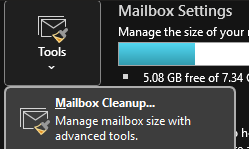
- Use the Find feature to search for emails with large attachments:

- You will be presented with a list of emails with attachments over the specified file size. From here, you can double click an email to open it, save the attachment, and then delete the email.
- Go to File > Tools > Mailbox Cleanup:
Empty your Deleted Items folder
- Emails you may have deleted in the past still take up space in the deleted items folder.
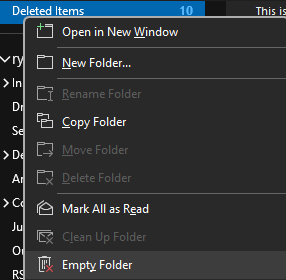
- You can quickly empty the folder by right clicking it:
- You can also have Outlook empty this folder on exit in File > Options > Advanced > Outlook start and exit:

Archiving Options
Outlook's main archiving tool is the PST file. A PST file is a single file on your computer which stores data for all emails you add to it. This is the primary way to move older, but important emails elsewhere without using up inbox space.
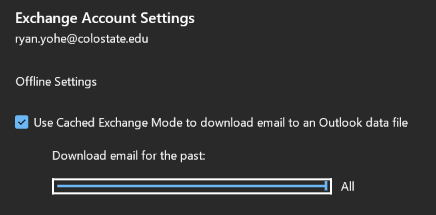
Before archiving emails, they may need to be downloaded from Microsoft's email server. By default, Outlook only keeps 1 year worth of emails on your computer. This can be changed with the following:
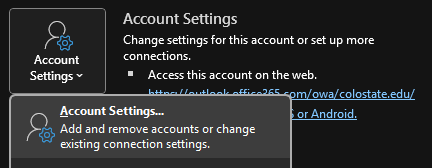
- Go to File > Account Settings > Account Settings
- Double-click your email, and then change the download email setting to All:
- Click Next, then Done. You will need to restart Outlook and wait a while for all your emails to download.
Creating a PST file
There are several methods to move emails into a PST, outlined below.
- Inbox Folders
- Any email folder you have can be turned into an archive using the following steps:
Go to File > Open & Export > Import/Export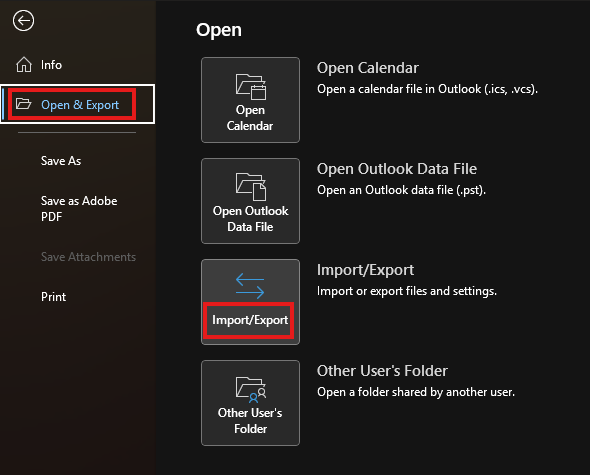
In the menu, click Export to a File, then Outlook Data File (.pst). Select the folder you would like to archive: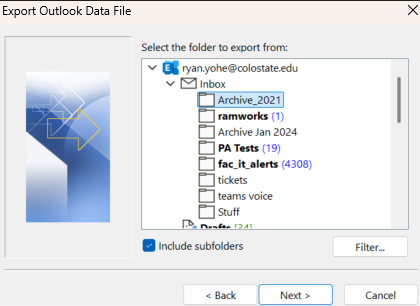
By default, Outlook will add any subfolders you have within the top folder to the archive. It will also maintain any folder structures you have. If you don't want subfolders added, you can uncheck the Include subfolders box.
Click Next, and you will be prompted to choose where to save the file: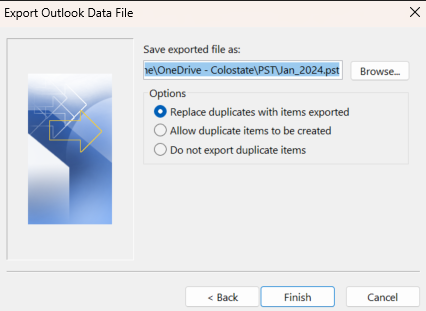
The default name of the file will be Archive.pst. It is recommended you change the file name to something representative of its contents.
You can save the file to a number of places:- A folder on your computer
- The H Drive
- Your OneDrive
- A Teams Sharepoint
- If applicable, an external hard drive
- Any email folder you have can be turned into an archive using the following steps:
- Clean Up Old Items
- Outlook has a built-in tool for quickly archiving individual folders, similar to the method above. You can access it by going to File > Tools > Clean Up Old Items:
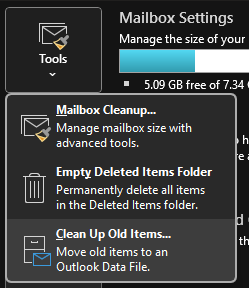
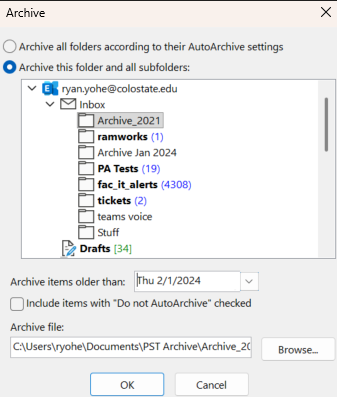
Here, you can select the folder you wish to archive as well as the option to archive all items older than a certain date, if you don't want to archive the entire folder.
Pick where you would like to save the file, and click OK.
- Outlook has a built-in tool for quickly archiving individual folders, similar to the method above. You can access it by going to File > Tools > Clean Up Old Items:
- AutoArchive
- Outlook has an automated archiving feature which can be applied to any inbox folder. Right click either your inbox, or the folder you wish to auto archive, and click Properties…
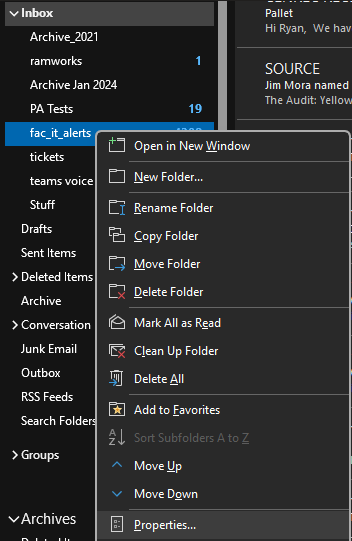
In the AutoArchive tab, you can change the settings to fit your needs, and then select a location to save the file: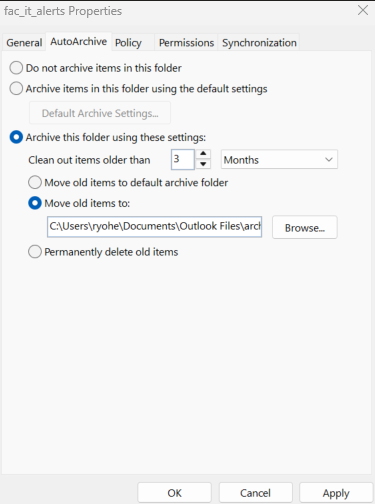
This setting will regularly move emails beyond the specified timeframe to the archive file.
Please note AutoArchive may archive or not archive emails you think it will depending on other settings. We recommend using the Clean Up Old Items method so you can control what archives based on a date, and whether you want to include subfolders or not.
- Outlook has an automated archiving feature which can be applied to any inbox folder. Right click either your inbox, or the folder you wish to auto archive, and click Properties…
Using a PST File
A PST file must be manually loaded into Outlook so it can be browsed, and should be closed afterwards.
Depending on where you store your PST files, opening and closing them should be handled differently to avoid syncing problems with the cloud.
If you store your PSTs in your OneDrive, in a Teams Sharepoint, or on the H drive:
- Copy the file from the cloud to your computer. You can drag and drop it to your desktop, your documents folder, or wherever it can be accessed on your computer.
If you keep your PSTs on your computer, you can skip this step.
Opening a PST file
- In Outlook, go to File > Open & Export > Open Outlook Data File:
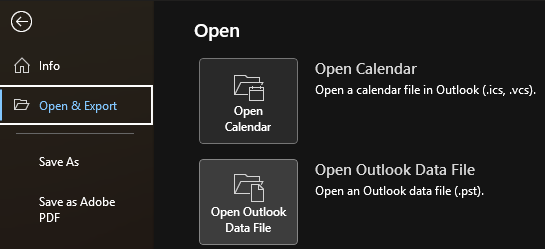
Browse to the location where you saved the file on your computer, and open it. Outlook will display the PST as a separate folder underneath your inbox: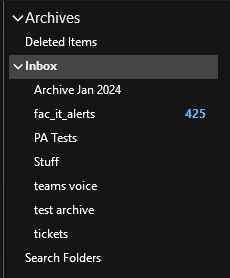
In this case, the entire inbox from before 1/1/2024 was archived, so it is displayed as the inbox with any folders and subfolders.
When you have finished using the file, right click on the archive to close it: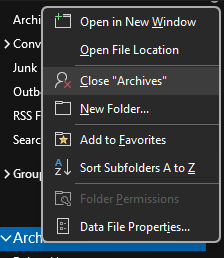
If you copied the PST from the cloud, it can be deleted from your computer. If you added new emails to the PST, you can replace it on the cloud.
Opening a PST file from the cloud will cause syncing errors and should be avoided.
More info:
Microsoft - Exporting emails to Outlook using a PST file
Microsoft - Archive older items automatically